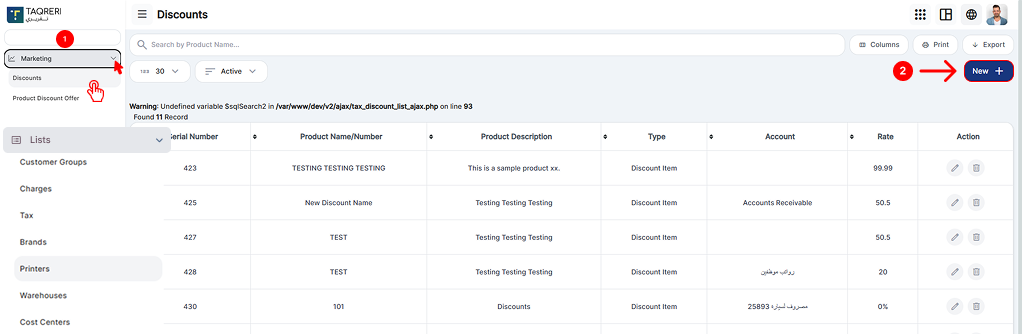
Click Marketing
Click Discounts
Click Add New
The Discount feature allows you to reduce the invoice total or product price by a fixed amount or percentage. Discounts can be applied automatically through POS registers or manually by the cashier, and they can also be restricted to specific products.
⚠️ This discount type is meant for sales discounts only. It should not be used for early payment or settlement discounts.
Discount Types Supported
Discounts can be configured in two ways:
Percentage Discount
Example: 10% off the total bill or selected products.
Fixed Amount Discount
Example: PKR 500 off the invoice.
The system subtracts the discount from the subtotal or total, depending on configuration.
Creating a Discount
Steps
Go to Products → Add New Product
Select Discount as the product type.
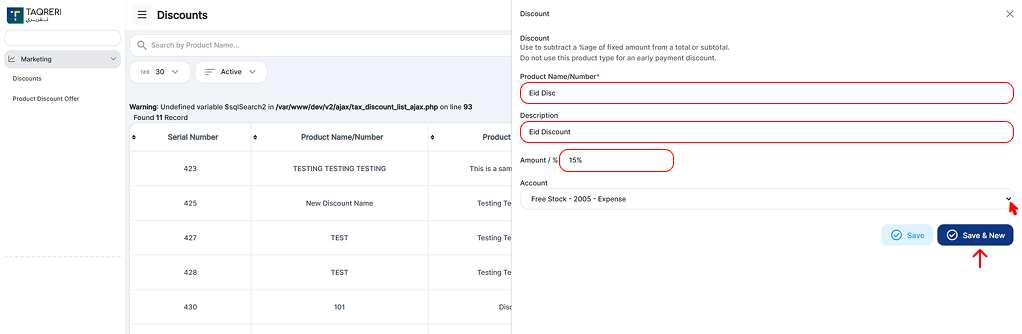
Fill in the following fields:
Product Name / Number
(e.g., Seasonal Discount 10%)
Description (optional)
Amount / %
Enter a number (e.g., 10 for 10% or 500 for a fixed discount)
Account
Select the expense or discount account where the discount will be recorded.
Click Save.
Applying Discounts in POS
1. Automatic Discounts (POS Register Level)
Discounts can be configured at the POS register level to apply automatically when an order meets defined conditions (for example, minimum order value or specific products).
Common use cases:
Store-wide promotional discounts
Happy hour or time-based discounts
Branch-specific offers
Once configured:
The discount is applied automatically
Cashiers cannot skip it unless permissions allow
2. Manual Discounts (Cashier-Applied)
Cashiers can manually apply discounts during billing.
How it works:
Open the POS invoice.
Add items to the order.
Select the Discount from the product list or discount option.
The discount is applied immediately to the invoice total.
Manual discounts are subject to user permissions. Admins can restrict who is allowed to apply them.
Product-Specific Discounts
Discounts can be limited to:
Specific products
Product categories
When applied:
The discount affects only the selected products
Other items on the invoice remain unchanged
This is ideal for:
Clearance items
Brand-specific promotions
Limited-time product offers
Accounting Impact
Discounts are posted to the selected Expense / Discount account
Sales revenue remains intact, ensuring clear financial reporting
This keeps discounts visible and auditable in financial statements
Best Practices (Straight Talk)
Use percentage discounts for promotions and campaigns.
Use fixed discounts for vouchers or special compensation.
Avoid giving cashiers unrestricted manual discount access—it leads to revenue leakage.
Always track discounts via proper accounts for clean audits.
Key Notes
Discounts apply to subtotal or total, not payments.
Discounts are not refundable as cash.
Discounts can be automatic or manual, but should be clearly controlled.