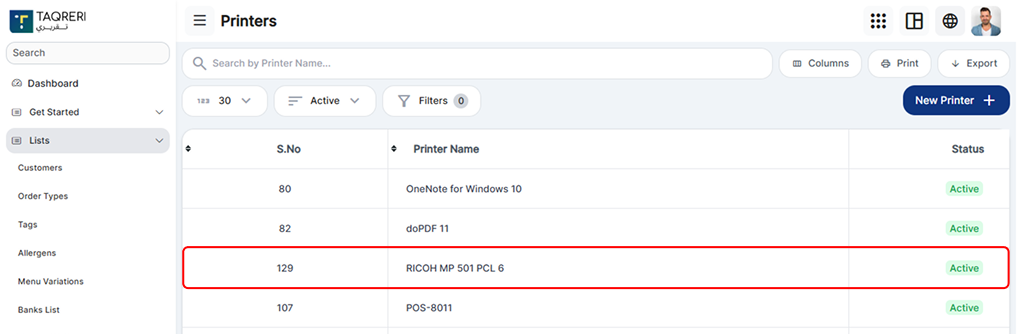
This guide explains how to install and configure a printer in the web application using the Web Print Client for thermal printing.
Since browsers cannot directly access local printers, the Web Print Client is required to detect and manage installed printers
Prerequisites
Before you begin, make sure:
You have administrator or POS access to the system
The printer is already installed on your computer (Windows/macOS/Linux)
You have a stable internet connection
You are using a supported browser (Chrome, Edge, or Firefox recommended)
Download and Install the Web Print Client
Log in to the web application
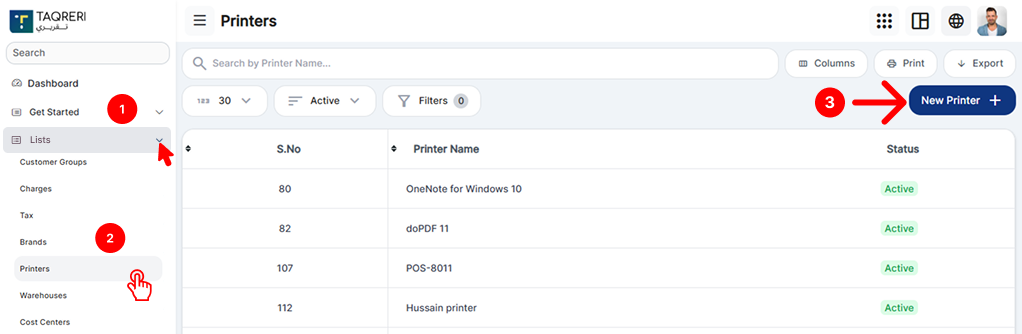
Navigate to:
Settings / Transport → Printers
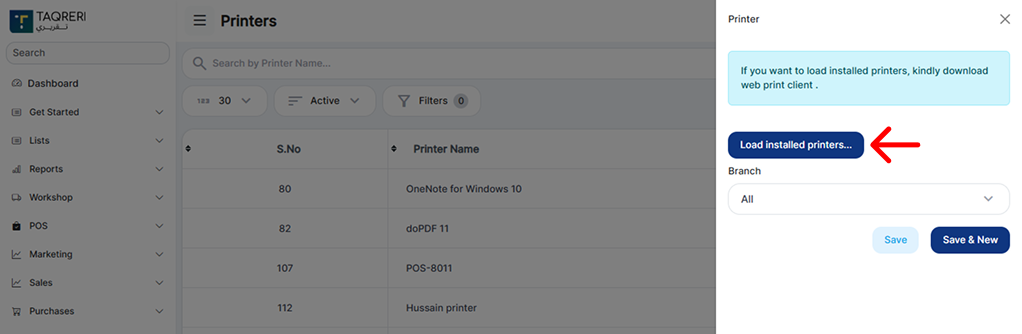
You will see the message:
“If you want to load installed printers, kindly download web print client.”
Click Download Web Print Client
Install the application on your computer:
Windows: Run the .exe file and follow the setup wizard
macOS: Open the .dmg file and drag the app to Applications
Linux: Follow the provided installer instructions
✅ After installation, ensure the Web Print Client is running in the background
Load Installed Printers
Return to the Printers page in the web application
Click Load Installed Printers
The system will fetch all printers installed on your computer via the Web Print Client.
Configure the Printer
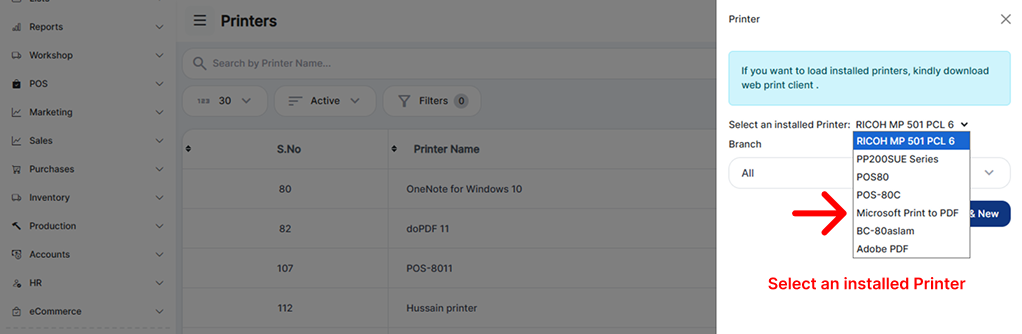
Select the printer you want to configure
Choose the Branch:
Select a specific branch, or
Choose All if the printer applies to all branches
Verify printer details.
Save the Printer
Click Save to store the printer configuration
Click Save & New to add another printer immediately
🎉 Your printer is now successfully configured and ready to use.
Troubleshooting
Printers Not Loading?
Make sure the Web Print Client is running
Restart the Web Print Client and refresh the browser
Check that the printer is installed correctly on your system
Disable firewall or antivirus temporarily (if blocking the client)
Button Not Responding?
Try refreshing the page
Clear browser cache
Use a different supported browser
Tips & Best Practices
Install the Web Print Client on every machine that will print receipts
Avoid renaming printers after configuration
Use dedicated printers for POS operations for better performance