



This article explains how to configure printing options when using a POS counter/register, including Invoice printing, KOT (Kitchen Order Ticket) printing, and thermal printer setup.
Overview
The POS Printing Setup allows you to:
Configure invoice printing
Enable or disable KOT printing
Assign printers for counter, kitchen, or employees
Control product, employee, and general print behavior
This setup is commonly used at POS counters/registers in restaurants, cafés, and retail stores.
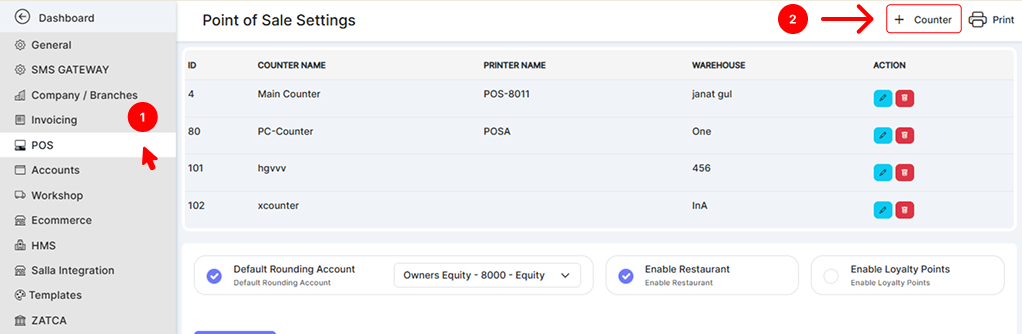
Prerequisites
Before configuring printing:
Ensure the POS counter/register is active.
Connect and install the thermal printer on the system.
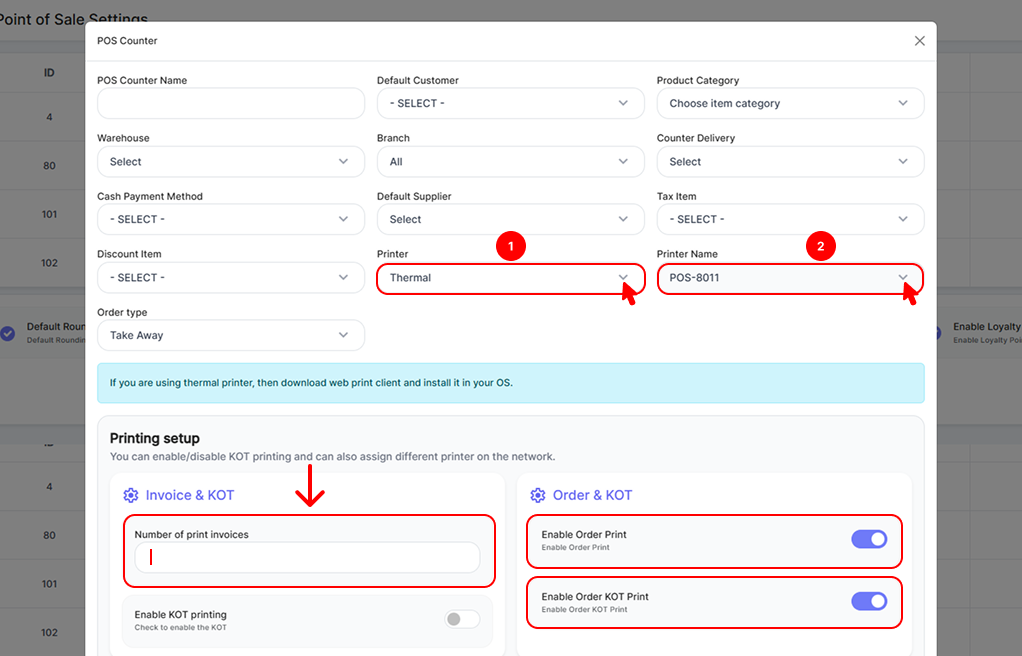
If using a thermal printer, download and install the Web Print Client on the operating system.
Note: Thermal printers require the Web Print Client to communicate with the browser.
Printer Selection
Printer Settings
Printer Type: Select Thermal
Printer Name: Choose the connected printer (e.g., POS-8011)
Order Type: Select the applicable order type (Dine-in, Takeaway, Delivery, etc.)
Invoice Configurations
Number of Print Invoices
Define how many copies of the invoice should be printed per order.
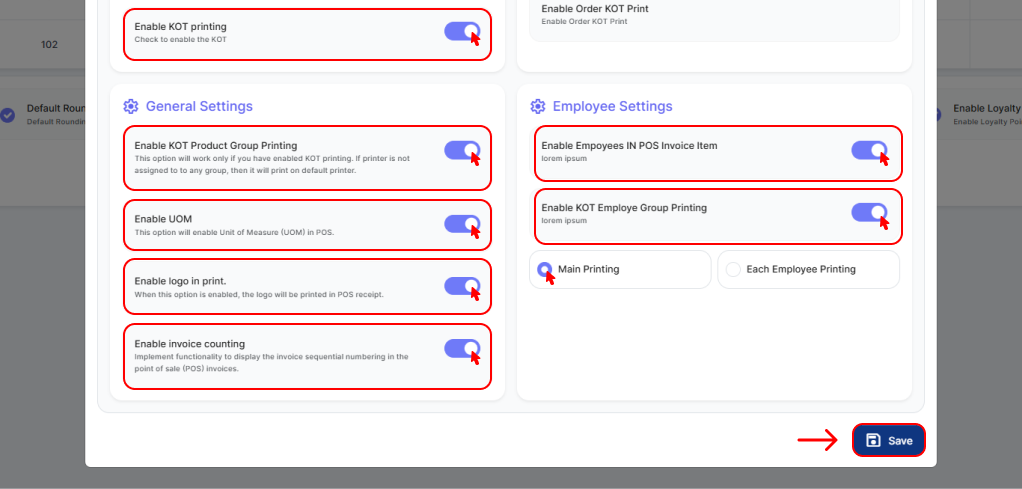
Enable KOT Printing (Invoice Side)
Enable this option if the invoice should also trigger KOT printing.
Recommended for restaurants where billing and kitchen printing are linked.
KOT (Kitchen Order Ticket) Configurations
Enable Order Print
Enables printing of order details from the POS counter.
Enable Order KOT Print
Sends order items directly to the kitchen printer.
Essential for kitchen operations.
Best Practice: Enable both options for smooth order flow between counter and kitchen.
Product & General Settings
Enable KOT Product Group Printing
Allows assigning different printers to different product groups.
Example:
Bar items → Bar printer
Kitchen items → Kitchen printer
If no group printer is assigned, items print on the default printer.
Enable UOM (Unit of Measure)
Displays units (e.g., pcs, kg, liter) on POS and printouts.
Enable Logo in Print
Prints the business logo on POS receipts.
Enable Invoice Counting
Enables sequential invoice numbering on printed receipts.
Employee Settings
Enable Employees in POS Invoice Item
Displays employee/waiter name on the POS invoice.
Enable KOT Employee Group Printing
Enables printing based on employee groups.
Printing Mode
Main Printing: All orders print to one main printer.
Each Employee Printing: Orders print separately based on assigned employees.
Recommended Setup for POS Counter/Register
For most POS counters:
✅ Printer Type: Thermal
✅ Enable Order Print
✅ Enable Order KOT Print
✅ Enable KOT Product Group Printing (for restaurants)
✅ Enable Invoice Counting
✅ Enable Logo in Print
Troubleshooting Tips
Printer not printing?
Check if Web Print Client is installed and running.
KOT not printing?
Ensure KOT printing is enabled in both Invoice and KOT configurations.
Wrong printer used?
Verify product group and printer assignments.
Summary
The POS Printing Options allow flexible control over invoices, kitchen tickets, and printer routing. Proper configuration ensures faster service, fewer errors, and smooth coordination between the POS counter and kitchen.